An MCP server is how an AI app uses a tool it wasn't built with: your CRM, your ad account, a database, or a Skill someone sells. MCP (Model Context Protocol) is the open standard both Claude and ChatGPT speak, so one server can work in either.
There are two kinds, and they're added differently:
- Remote servers run on the internet and you add them with a URL. In Claude these are called connectors. This is what most people need.
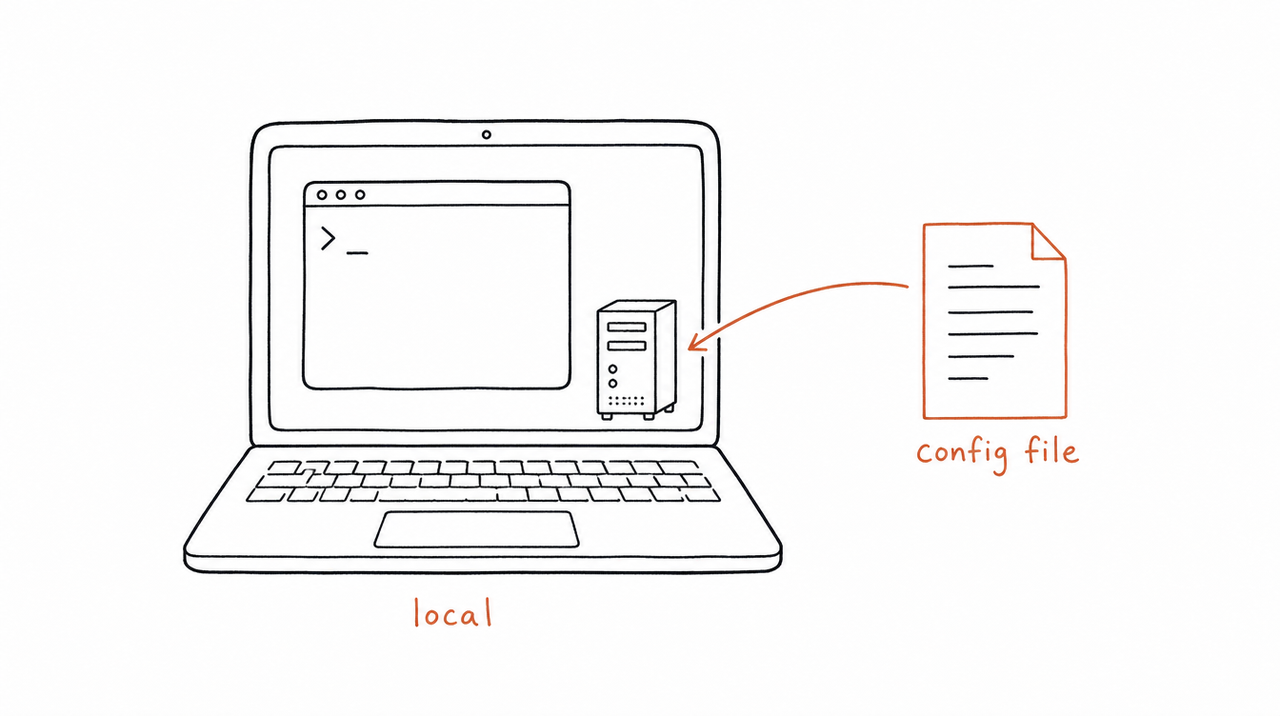
- Local servers run on your own computer. They're for files on your machine or developer tools, and work in Claude Desktop and Claude Code.
Below are the exact steps for each app, current as of October 2026.
Add a connector in Claude (web, desktop and Cowork)
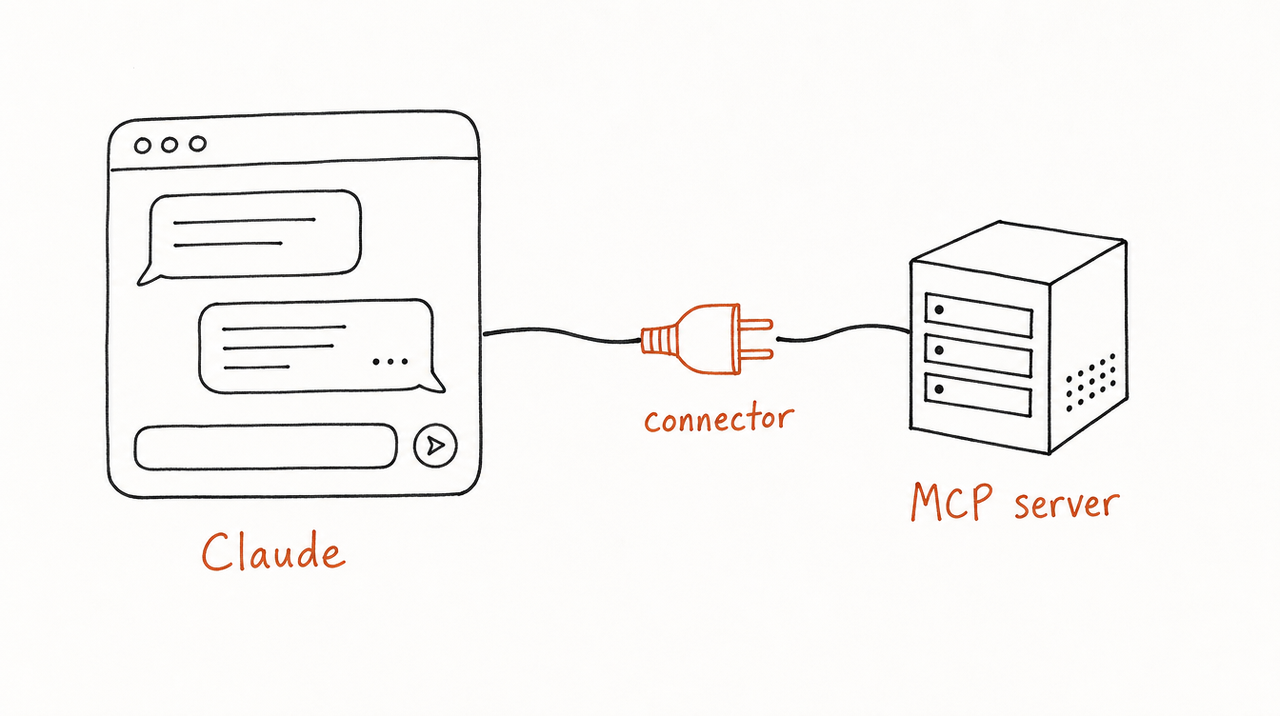
Custom connectors work on every Claude plan, including Free, in claude.ai, Claude Desktop and Cowork. Free accounts can have one custom connector at a time.
On Free, Pro or Max:
- Go to Customize > Connectors.
- Click + Add, then Add custom connector.
- Give it a name and paste the server's URL.
- Fill in any authentication details the provider gave you, then click Add.
- If the server asks you to sign in, Claude opens the provider's login page. Claude never sees your password.
On Team or Enterprise: an owner adds the connector once under Organization settings > Connectors. Each member then connects their own account from Customize > Connectors.
To use it, open a chat, click + in the lower left, choose Connectors, and turn it on for that conversation.
One requirement trips people up: Claude reaches the server from Anthropic's cloud, so the URL must be reachable on the public internet. A server behind a company VPN or firewall won't connect this way.
Local servers: Claude Desktop and Claude Code
Claude Desktop installs local servers as extensions. Go to Settings > Extensions and click Browse extensions for ones Anthropic has reviewed. To install one you were given as a .mcpb file, open Advanced settings, find the Extension Developer section, click Install Extension… and choose the file.
Claude Code adds servers from the terminal with claude mcp add. A remote server takes its URL:
claude mcp add --transport http notion https://mcp.notion.com/mcpA local server takes the command that starts it, after --:
claude mcp add --transport stdio airtable -- npx -y airtable-mcp-serverBy default a server is only available to you in the current project. Add --scope user to use it in every project, or --scope project to share it with your team through the project's .mcp.json file. If a server needs you to sign in, type /mcp inside Claude Code and follow the browser prompt.
Add an MCP server to ChatGPT
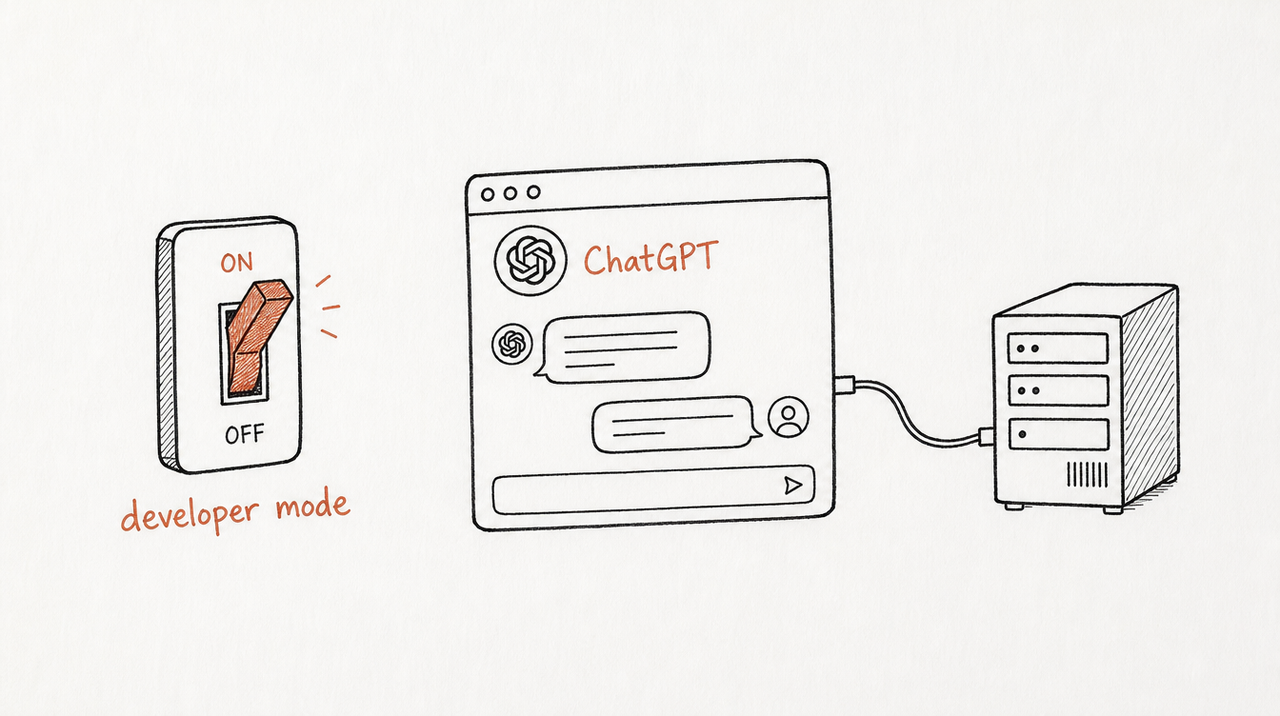
ChatGPT takes remote MCP servers through developer mode, on the web only. It's available on Plus, Pro, Business, Enterprise and Edu, but not Free. In a Business workspace only admins and owners can turn it on; on Enterprise and Edu, admins decide who can.
- In ChatGPT, open Settings > Security and login and turn on Developer mode.
- Open ChatGPT's Plugins page, click +, and create a developer-mode app with the server's URL. Pick the sign-in method the server uses (OAuth or none).
- The new app appears under Drafts in your app settings.
- In a chat, choose Developer mode from the + menu and select the app.
Two differences from Claude. ChatGPT can't connect to a server on your own computer, so the server must be online. And by default ChatGPT asks you to confirm any action that changes data, which is worth keeping on.
OpenAI labels developer mode as elevated risk and aimed at people who understand the tools they connect. In a company workspace, an admin usually tests the app and publishes it for everyone instead.
At a glance
- Claude (web, desktop, Cowork): Customize > Connectors. Remote servers only. All plans, including Free (one custom connector on Free).
- Claude Desktop: Settings > Extensions for local servers; remote ones through Connectors. Not limited by plan; Team and Enterprise admins can restrict extensions.
- Claude Code:
claude mcp addin the terminal. Remote and local. Any plan with Claude Code. - ChatGPT: Developer mode, then Plugins. Remote only. Plus, Pro, Business, Enterprise and Edu, on the web.
On Claude Team and Enterprise and on ChatGPT Business, an admin or owner adds the server first.
Before you connect a server
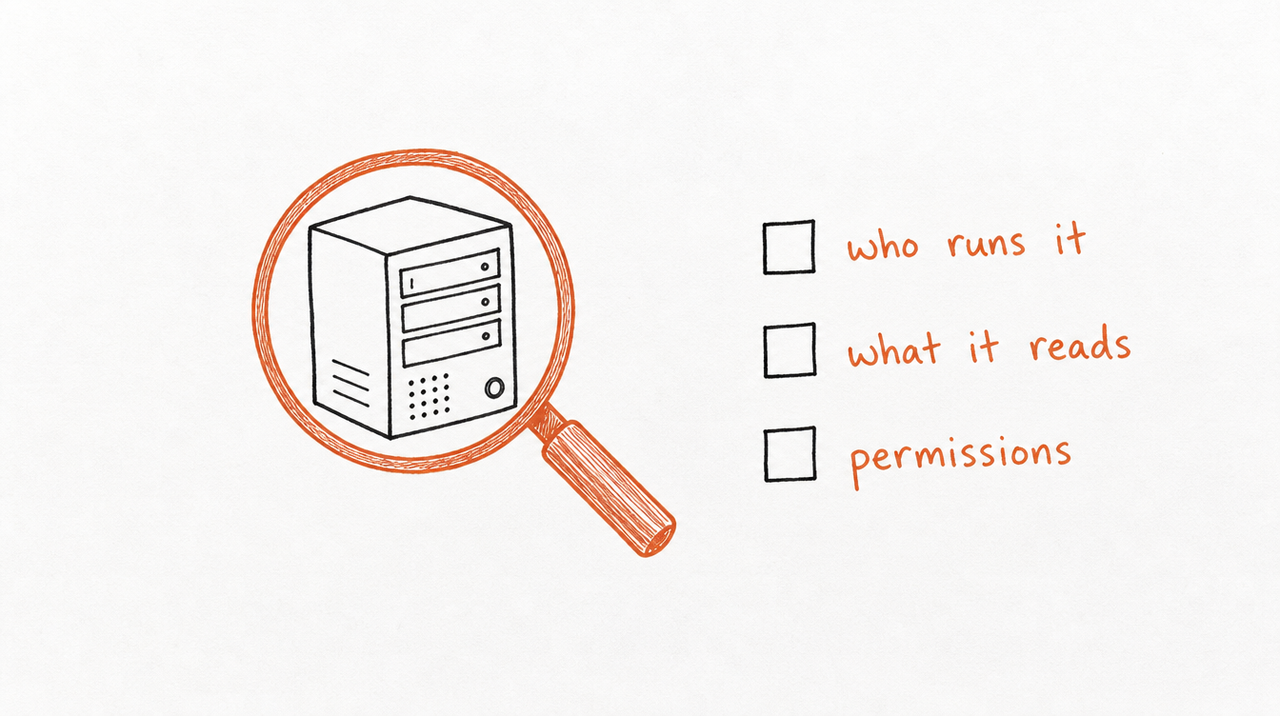
Anthropic and OpenAI both say the same thing: only connect servers built and hosted by people you trust. A connected server can read what you share with it and, if it has write tools, change things in your accounts. Servers that pull in outside content can also carry instructions meant to steer the AI (prompt injection).
A quick check before you add one:
- Who runs it? A company you already pay, or a provider with a name and support page.
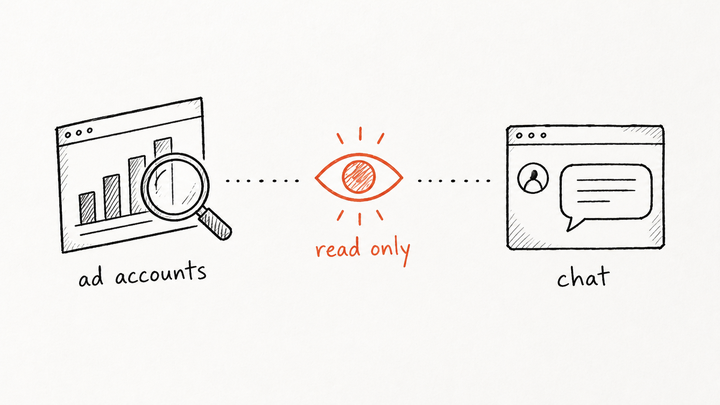
- What can it do? Read only, or can it send, edit or delete?
- What does signing in grant? Read the permissions on the login screen.
- Keep confirmations on for actions that change data.
The same steps sell a Skill
This is also how customers use a Skill you sell through expertrelay. Your Skill runs privately on our server, and each customer gets one link. They add it as a custom connector in Claude, through developer mode in ChatGPT, or in Cursor, then sign in with the email they bought with. There's nothing to download, and they only see the Skills they've paid for.
Because it's one link, an update reaches every customer on their next run, and a refund or cancellation turns access off. If you've read What are Claude Skills?, this is the step that turns a Skill into a product.
See how selling a Skill works →
FAQ
What is MCP in Claude?
MCP is the open standard Claude uses to talk to outside tools and data. In the Claude apps, an MCP server you add by URL is called a connector.
Is Claude MCP free?
Yes. Custom connectors work on the Free plan, limited to one at a time. Paid plans can add more. The server itself may charge separately.
Can I use MCP with Claude Desktop?
Yes, both ways: remote servers as connectors, and local servers as extensions under Settings > Extensions.
Can ChatGPT use the same MCP server as Claude?
Usually, if the server is online. ChatGPT needs a remote server over SSE or streaming HTTP; it can't reach one running on your computer.
Why won't my connector connect?
The most common reason is that the server isn't reachable from the public internet, for example behind a VPN. Check the URL, then sign in again from the connector's settings.